Help Centre › VAT (MTD)
Send a VAT return as an agent
10 steps · 5 min · Updated 3 November 2026
Before you start
- The VAT add-on is on for your practice: Add-ons.
- The client's Company books are switched on and have the VAT number.
- You can sign in to your HMRC agent services account, and the client has authorised you for VAT.
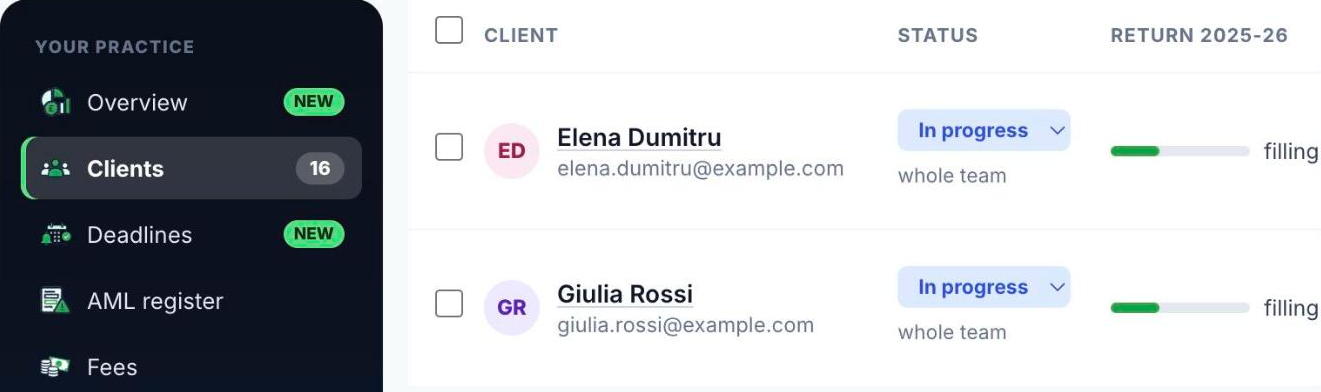
- Go to Clients and press the client's name to open the client file.
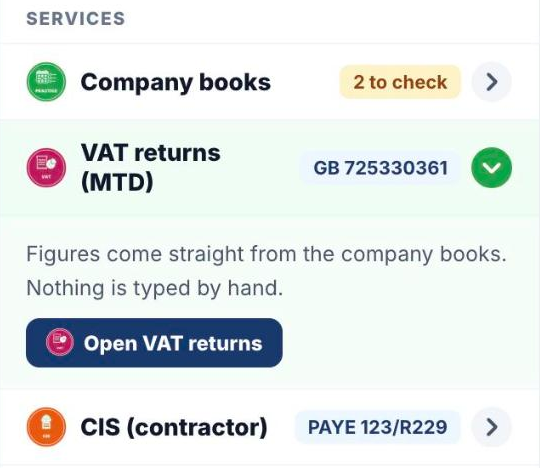
- In the client file, under Services, press VAT returns (MTD) to open it, then press Open VAT returns.
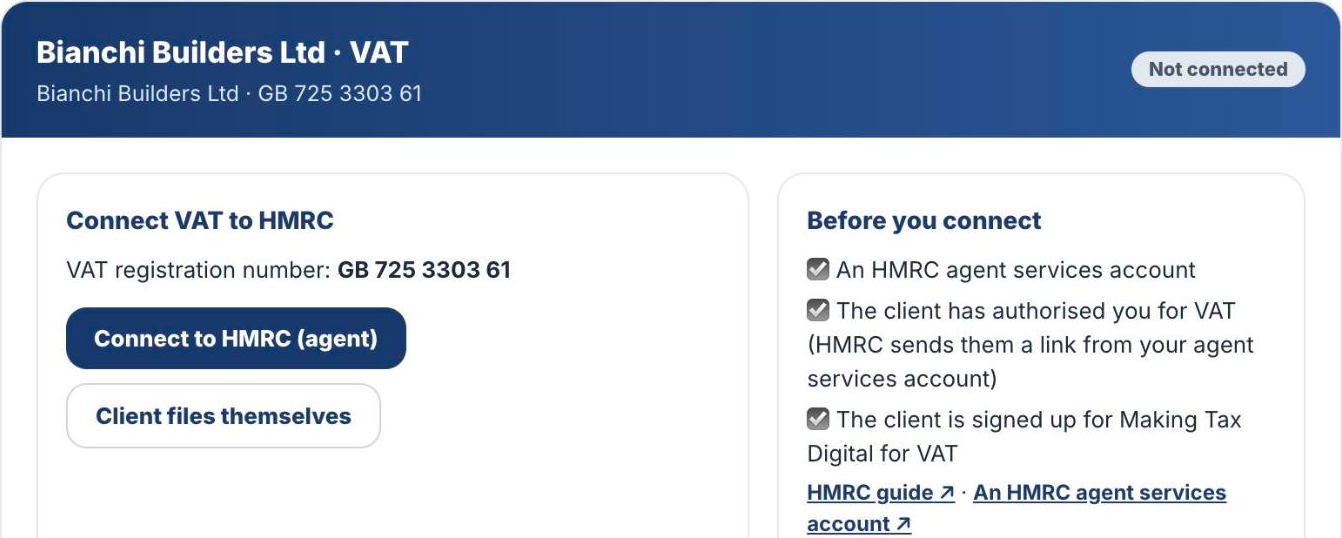
- First time only: press Connect to HMRC (agent). On the HMRC page press Continue and sign in with your agent services account. You come back to TaxEase UK and see Connected to HMRC.
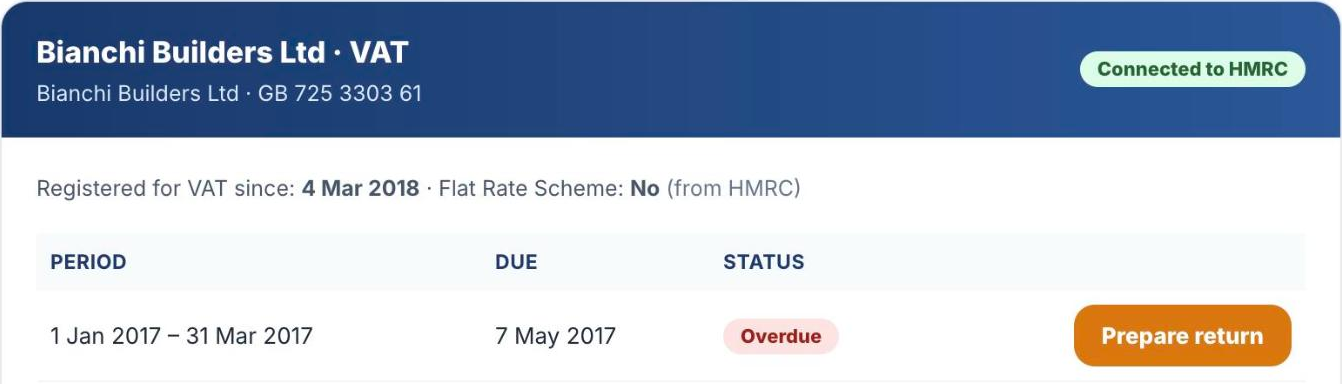
- In the list of periods, find the one marked Open or Overdue and press Prepare return.
- Check the nine boxes. They are filled from the company books; you cannot type in them. To see which records make a box, press the lines link next to it.
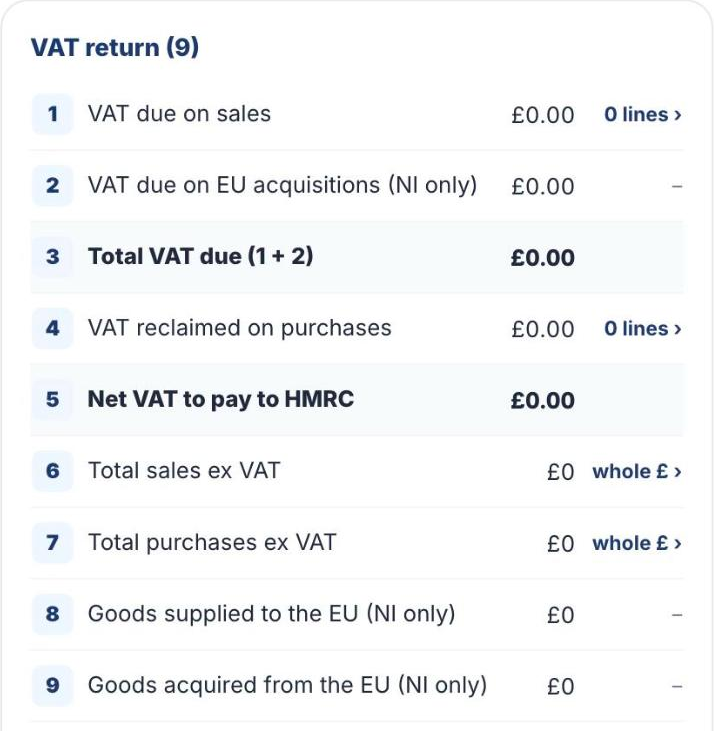
Need a correction? Press + Add adjustment (with reason). It is saved with the date, the reason and your name.
- Press Send to client for approval. The client gets an email with a link. If they have no email, press Copy link and send it yourself.
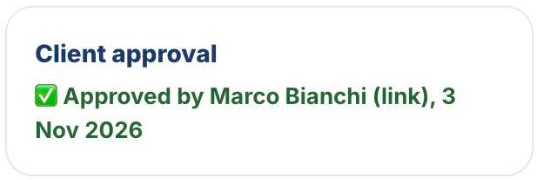
- The client opens the link, checks the figures, types their name and presses I approve these figures. On your screen you now see Approved by … with the date.
- Tick the Declaration. The submit button stays grey until you tick it.
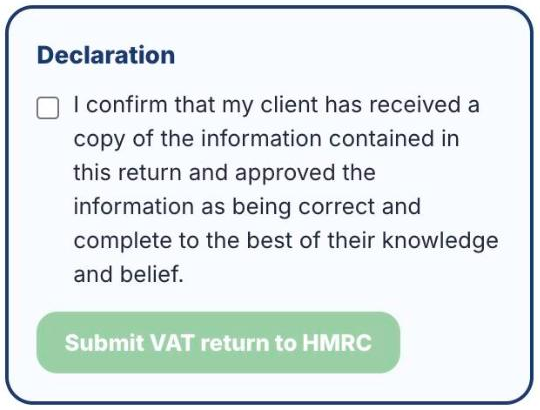
- Press Submit VAT return to HMRC, then Submit to HMRC in the window that opens.
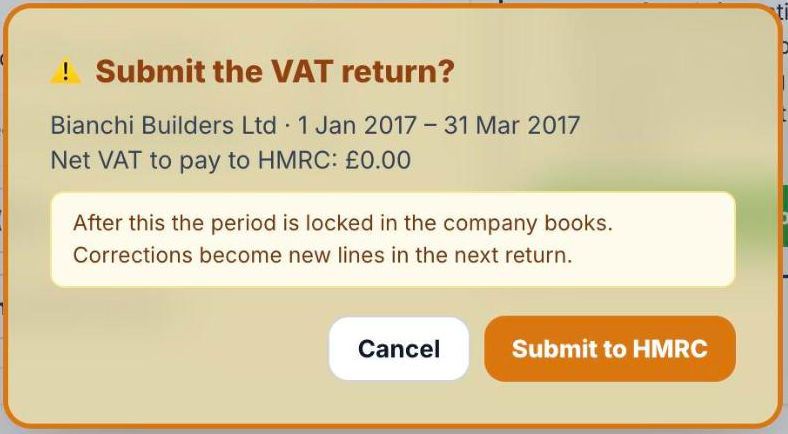
Changed your mind? Press Cancel or the Esc key. Nothing is sent.
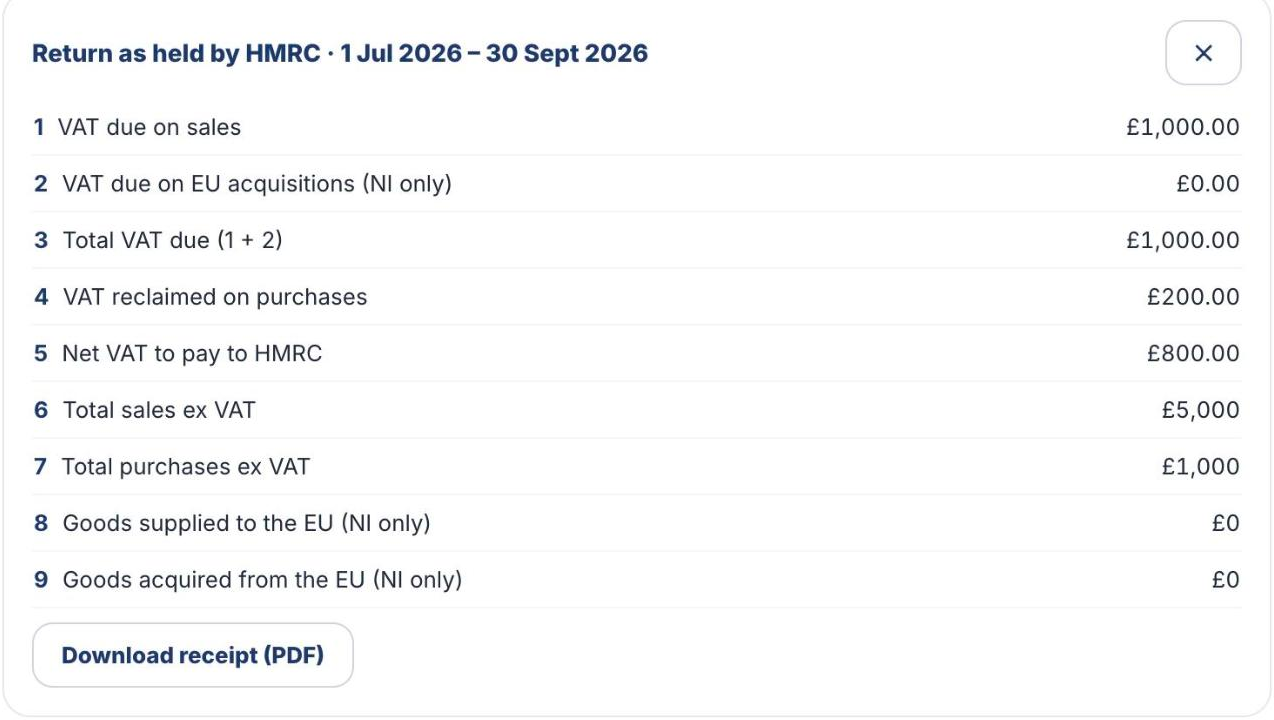
- You see VAT return submitted with the HMRC confirmation. The period is now locked, and the receipt is saved in the client's messages. Press Download receipt (PDF) if you need a copy.
Good to know
- Nothing is sent to HMRC until you tick the declaration and confirm.
- To see what the client owes or has paid, press What is owed and paid (from HMRC) on the same page.
- If HMRC shows a message, see When HMRC shows an error.
Was this helpful?Still stuck?or email support@taxeaseuk.com