Help Centre › For accountants
Deadlines for every client
6 steps · 3 min · Updated 3 November 2026
- Press Deadlines in the menu. At the top you see how many deadlines are Overdue, Due in the next 7 days, Due in the next 30 days and Waiting for client documents.
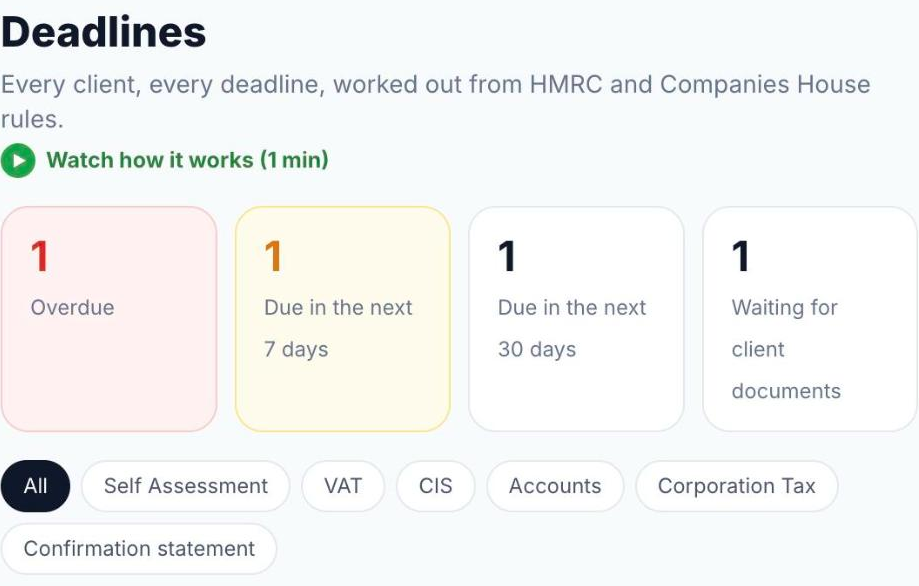
- Press a type to see only those deadlines: Self Assessment, VAT, CIS, Accounts, Corporation Tax or Confirmation statement. Press All to see everything again.
- The list is grouped by when: Overdue, Next 7 days, Later. Each row shows the date, the client, the type and the period.
- Set the status on each row: Not started, Waiting for client, Ready to file, Filed or Not needed.
- Press Open to go to the client file. If the client has an email, you can also press Remind now.
- From Overview, click a bar in Deadlines in the next 12 weeks to open this list on that week. Press Show all to bring back the full list.
Where the dates come from
- Switch on a service in the client file (Services and deadlines) and its deadlines are worked out for you.
- For companies, accounts, Corporation Tax and the confirmation statement come from the company's own data at Companies House.
Was this helpful?Still stuck?or email support@taxeaseuk.com