Help Centre › For accountants
Fees, time and invoices
6 steps · 4 min · Updated 3 November 2026
Before you start
- The Practice add-on is on: Add-ons.
- Open a client file. The green clock at the top, Session recording, starts by itself and counts only the time you work (clicks, typing, scrolling). It pauses when you stop for a few minutes or leave the tab. Press Stop to end the session.
- In the box on the right, open Fees & time. Under Fee for this client, choose Fixed price, Hourly or Fixed + hourly.
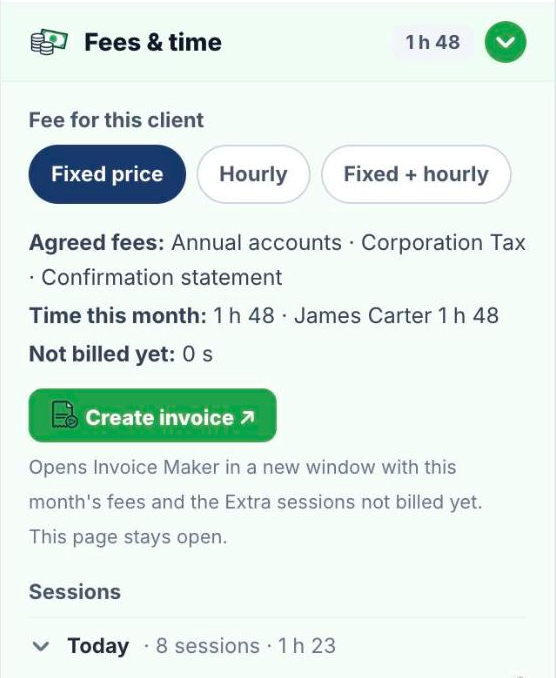
- You see the agreed fees, the time this month per person and what is not billed yet.
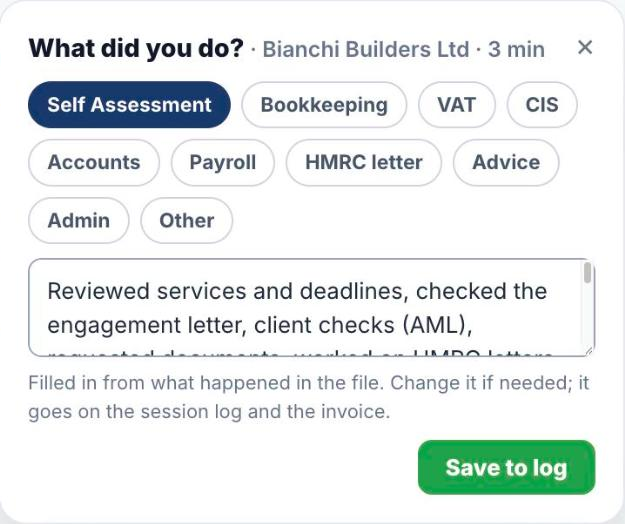
- Under Sessions, set each session to In fee (covered by the fixed fee) or Extra (to be billed). After a long pause, or when you leave the client file, TaxEase asks What did you do? It fills in what happened in the file; change it if needed and press Save to log.
- Press Create invoice. Invoice Maker opens in a new window with this month's fees and the Extra sessions not billed yet. The client file stays open.
- For all clients at once, press Fees in the menu: each client's fee, time this month, not billed and unpaid invoices.
Good to know
- Every closed session gets a seal and a check code (for example TXE-…), so the record cannot be changed later.
- Pause length and rounding are in Settings → Fees & time.
Was this helpful?Still stuck?or email support@taxeaseuk.com