Help Centre › For accountants
Your dashboard at a glance
5 steps · 3 min · Updated 3 November 2026
Before you start
- You are signed in to your accountant account. Your dashboard opens at My dashboard.
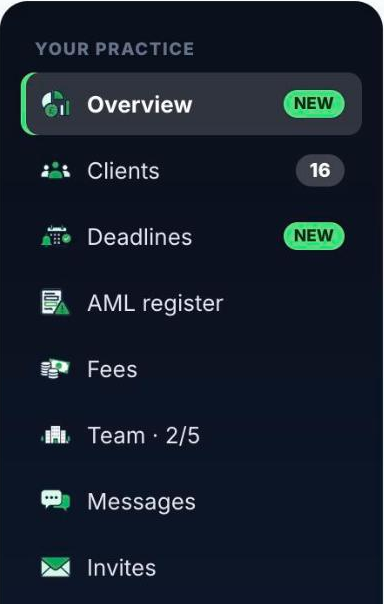
- On the left you have the menu, in three groups: Your practice (Overview, Clients, Deadlines, AML register, Fees, Team, Messages, Invites), Tools (Calculators, Calculator) and Account (Add-ons, Commissions, Settings, How it works, Support, Help Centre).
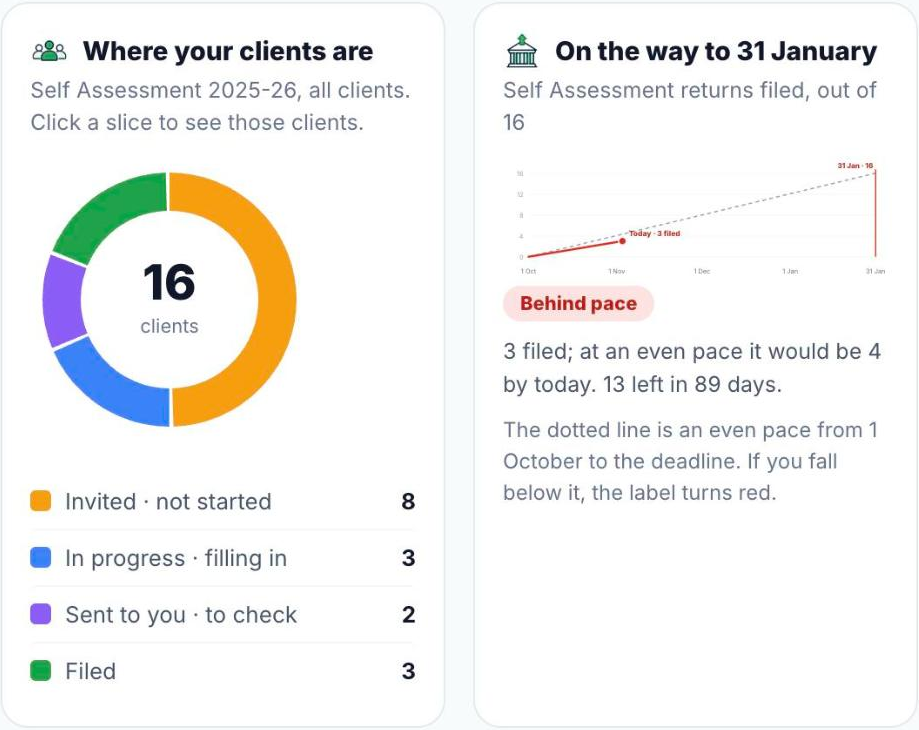
- Press Overview. The first chart, Where your clients are, splits your clients by stage: invited but not started, in progress, sent to you to check, and filed. Click a slice to see those clients in your list.
- Next to it, On the way to 31 January shows how many Self Assessment returns are filed against an even pace. If you fall behind, the label turns red.
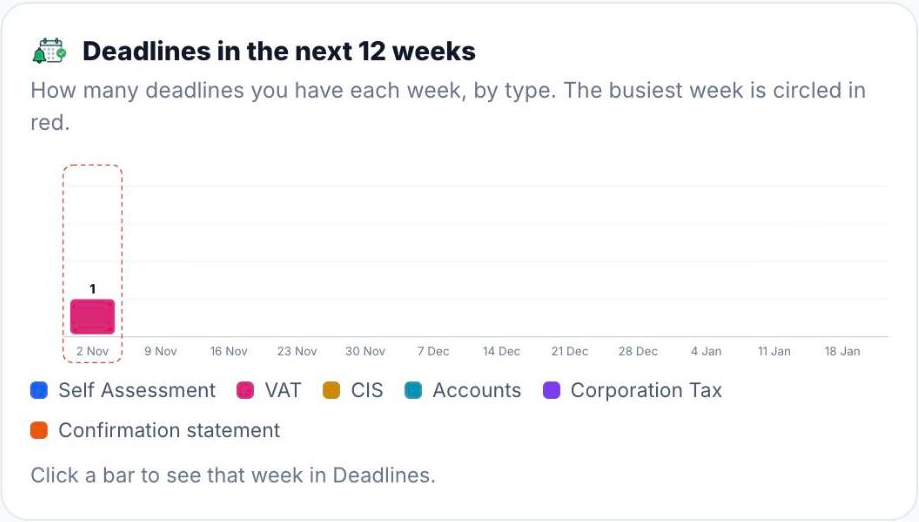
- Deadlines in the next 12 weeks shows how many deadlines you have each week, by type. The busiest week is circled in red. Click a bar to open Deadlines on that week.
- Lower down, Paid and unpaid shows your fees from the Unpaid label in your list, and Needs you this week lists what is waiting for you, not for the client: returns sent to you to check and overdue deadlines.
Good to know
- The numbers in the dark band at the top (clients, due within 30 days, unread messages, returns received) update every time you open the dashboard.
- Each part of the dashboard has a short video: look for Watch how it works.
Was this helpful?Still stuck?or email support@taxeaseuk.com