Help Centre › For accountants
Invite a client
6 steps · 3 min · Updated 3 November 2026
- In Clients, press + Invite a client.
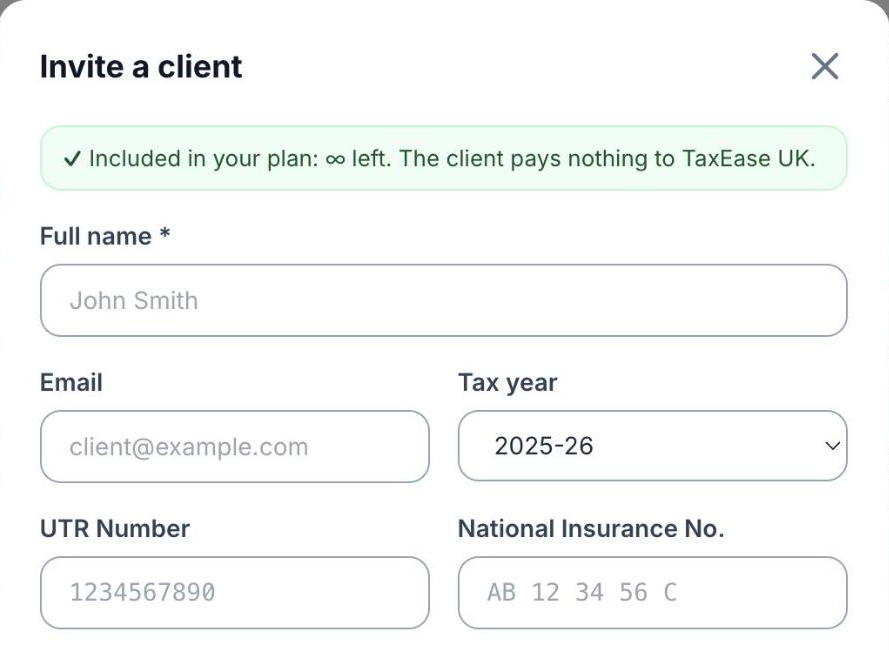
- Type the client's Full name and Email, and pick the Tax year. UTR Number and National Insurance No. are optional; you can add them later.
- Under Services and fee, tick what you do for this client. Prices come from Settings → Services; change them here only for this client. The text of the agreement fills in by itself.
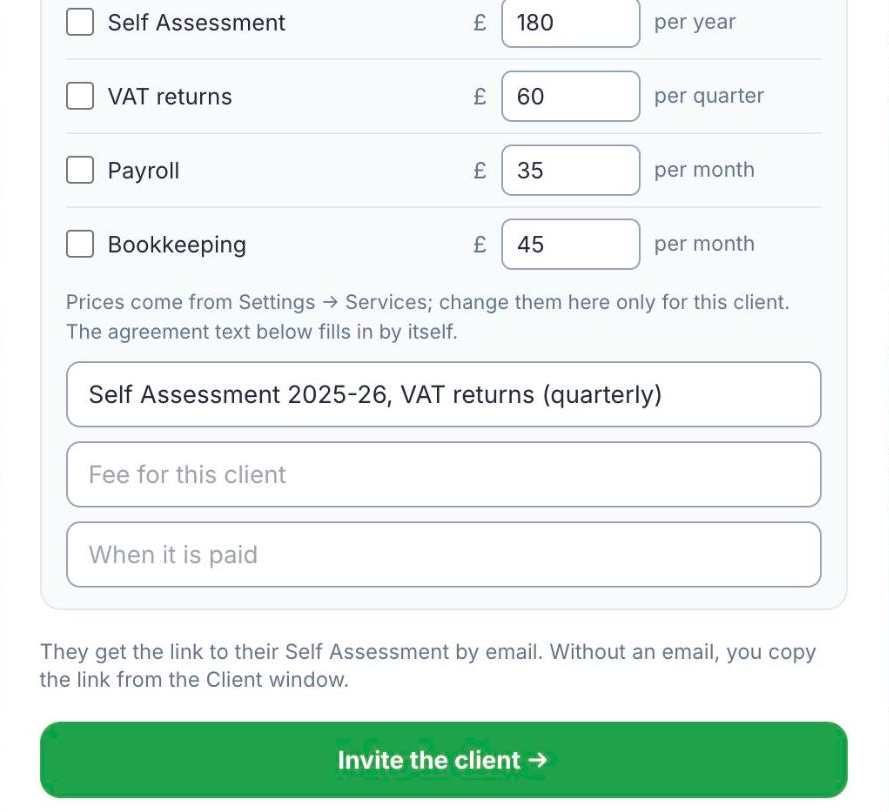
- Press Invite the client →. The client gets one email in their language, with your agreement to sign and a link to their account.
- No email? The client is still added. Open their file and copy the link from Invite link to send it yourself.
- To see who has the link but has not started yet, press Invites. From there you can press Copy link again.
Good to know
- The green line at the top tells you if the client is included in your plan. If it is, the client pays nothing to TaxEase UK.
- Many clients at once? Use Switch to TaxEase.
Was this helpful?Still stuck?or email support@taxeaseuk.com